High Performance Tech: How to Optimize Your Devices for Maximum Speed and Efficiency
In today’s fast-paced digital world, performance is everything. Whether you’re working, streaming, gaming, or multitasking, slow and unresponsive devices can quickly become a major source of frustration.
High performance tech is no longer just for professionals or gamers — it’s something everyone benefits from. A fast, responsive system saves time, improves productivity, and makes everyday tasks smoother and more enjoyable.
The best part? You don’t always need expensive upgrades to achieve this.
In many cases, poor performance is caused by inefficient settings, unnecessary background processes, or lack of proper maintenance. With the right optimizations, you can significantly improve your device’s speed and efficiency.
In this complete guide, you’ll learn how to turn your device into a high-performance system using simple, practical steps.
What Is High Performance Tech?
High performance tech refers to devices and systems that operate efficiently, respond quickly, and handle tasks without lag or delays.
A high-performance system typically offers:
- Fast startup and shutdown times
- Smooth multitasking without freezing
- Quick application loading
- Stable performance under heavy workloads
- Efficient use of system resources
This level of performance isn’t just about hardware — it’s about how well your system is optimized.
Why Performance Optimization Matters
Many users assume that a slow device means it’s time for a replacement. In reality, most performance issues are fixable.
Optimizing your device can:
- Extend the lifespan of your hardware
- Reduce unnecessary costs
- Improve workflow and productivity
- Enhance overall user experience
A well-optimized system can feel just as fast as a newer device.
✔ 1. Keep Your System Clean and Organized
Over time, your system collects temporary files, cached data, and unused programs.
These files take up space and slow down your device.
👉 What you should do:
- Delete temporary files
- Clear cache regularly
- Remove unused downloads
- Organize your storage
A clean system is a fast system.
✔ 2. Optimize Startup Programs
Startup programs are one of the biggest causes of slow performance.
Many apps launch automatically when your device starts, even if you don’t need them.
👉 How to fix it:
- Open Task Manager
- Go to the Startup tab
- Disable unnecessary programs
This can dramatically reduce boot time.

✔ 3. Keep Your Operating System Updated
Updates are essential for both performance and security.
They fix bugs, improve system stability, and optimize performance.
Always use trusted sources like Microsoft to ensure your system runs efficiently and securely.
✔ 4. Manage Background Processes
Background processes consume system resources without you noticing.
👉 Check Task Manager for:
- High CPU usage
- High RAM usage
Close processes you don’t need.
This frees up valuable system resources.
✔ 5. Upgrade to SSD Storage (Major Performance Boost)
Switching from an HDD to an SSD is one of the most impactful upgrades you can make.
Benefits include:
- Faster boot times
- Instant file access
- Improved overall responsiveness
Even older devices can feel significantly faster with an SSD.
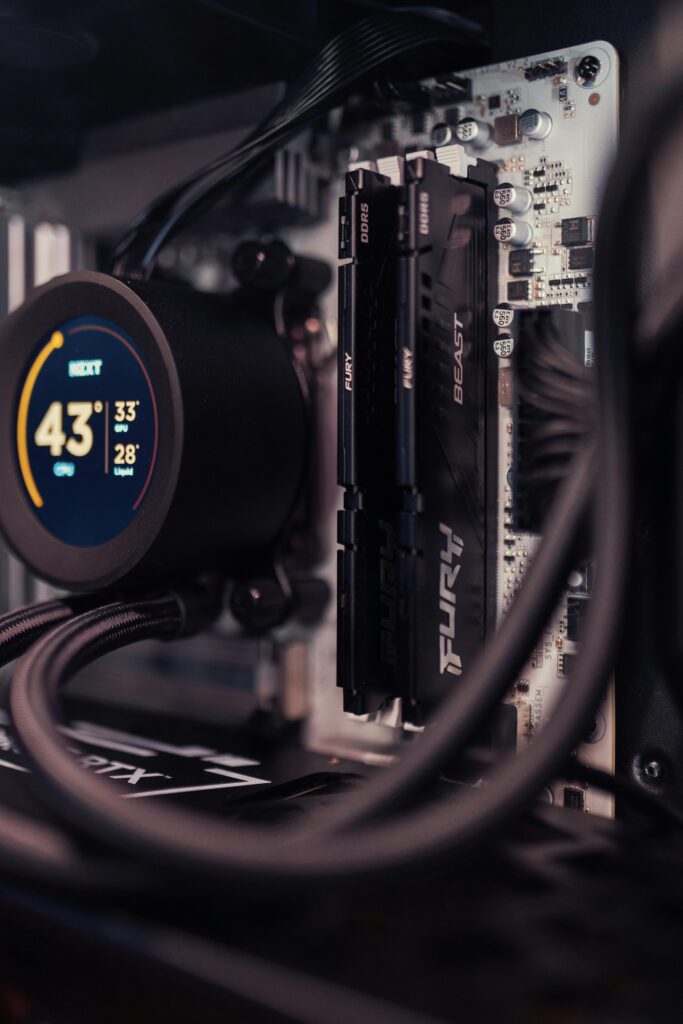
✔ 6. Increase RAM for Better Multitasking
If your device slows down when running multiple applications, your RAM may be the issue.
Adding more RAM allows your system to:
- Handle more tasks at once
- Run applications smoothly
- Reduce freezing and lag
This is especially useful for multitasking users.
✔ 7. Use Lightweight and Optimized Software
Some software is resource-heavy and can slow down your system.
👉 Consider:
- Using lighter alternatives
- Avoiding unnecessary features
- Choosing efficient tools
Optimized software makes a noticeable difference.
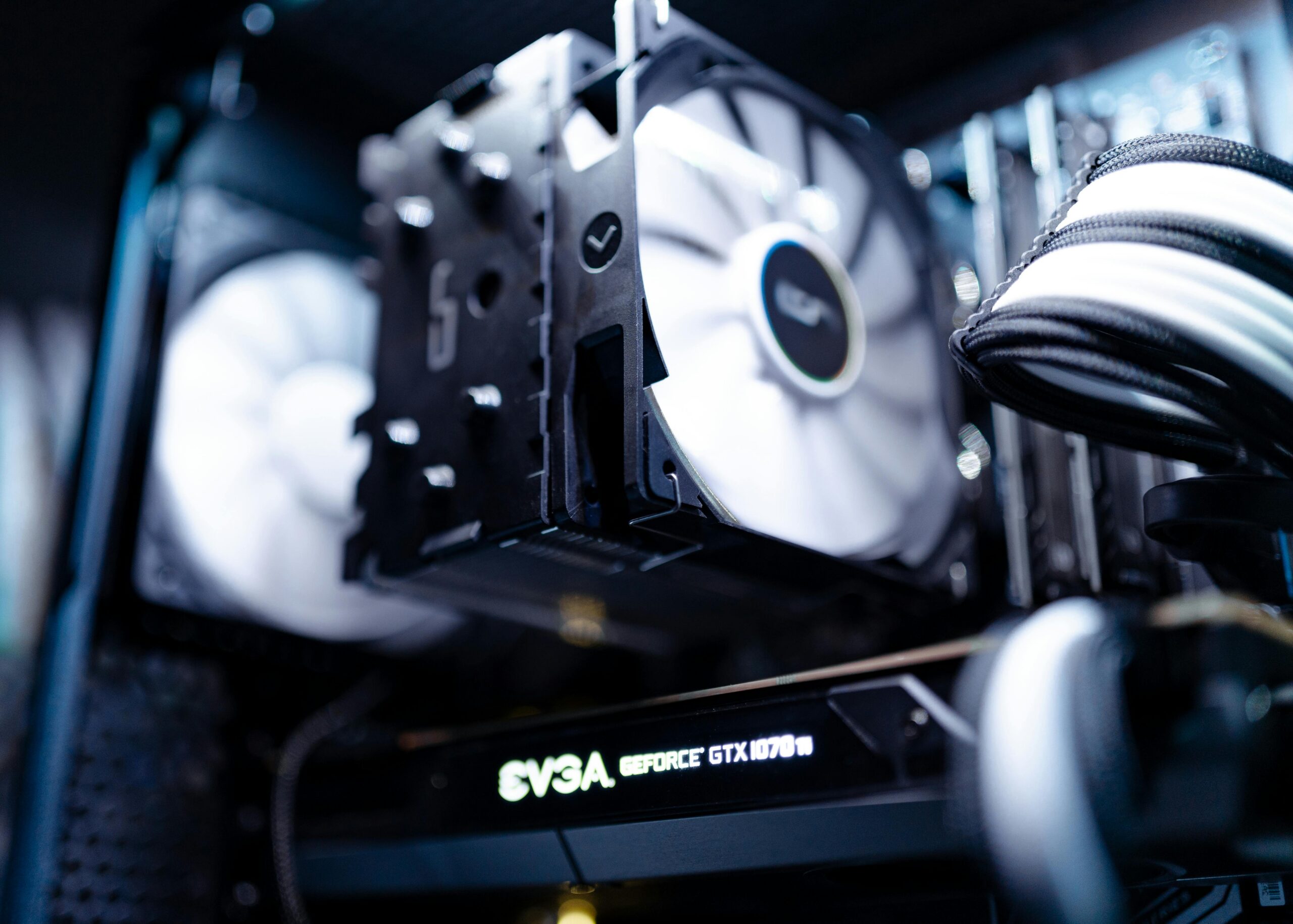
✔ 8. Improve Cooling and Prevent Overheating
Heat is one of the biggest enemies of performance.
When your system overheats, it slows down to protect itself.
👉 Improve cooling by:
- Cleaning dust from fans
- Using your device on hard surfaces
- Ensuring proper airflow
A cooler system performs better and lasts longer.
✔ 9. Adjust Power Settings for Maximum Performance
Many devices run in power-saving mode by default.
👉 Switch to:
- High Performance mode
This allows your system to use its full power.
✔ 10. Restart Your Device Regularly
Leaving your device on for long periods can slow it down.
Restarting:
- Clears memory
- Stops unnecessary processes
- Refreshes the system
A simple restart can improve performance instantly.
✔ 11. Remove Bloatware
Many devices come with pre-installed software you don’t need.
This “bloatware” consumes resources and slows down your system.
👉 Uninstall unnecessary programs to free up space and improve speed.
✔ 12. Scan for Malware and Threats
Malware can silently run in the background and reduce performance.
👉 Use trusted security tools to scan your system regularly.
Keeping your system clean ensures optimal performance.
✔ 13. Optimize Your Browser Usage
Your browser can significantly impact performance.
👉 Tips:
- Limit open tabs
- Disable unnecessary extensions
- Clear browsing data
A lighter browser setup improves speed.
What I personally would recommend is https://brave.com/
✔ 14. Monitor System Performance
Understanding how your system performs helps you identify problems.
👉 Use tools like:
- Task Manager
- Performance monitors
This allows you to spot issues early.
Common Mistakes That Reduce Performance
Avoid these common mistakes:
- Installing too many programs
- Ignoring system updates
- Running multiple heavy applications at once
- Downloading unknown software
- Never restarting your device
Small habits can have a big impact.
When Should You Upgrade Your Device?
Sometimes optimization isn’t enough.
Consider upgrading if:
- Your device is more than 5–7 years old
- It struggles with basic tasks
- It no longer supports updates
In such cases, new hardware may be the better solution.
Final Thoughts
High performance tech isn’t just about having the latest hardware — it’s about using your system efficiently.
With the right optimizations, you can transform a slow device into a fast and reliable one.
Most of these improvements are simple, cost-effective, and easy to implement.
Start applying these tips today and experience a noticeable difference in speed, performance, and overall usability.
Explore More Guides
Looking to improve your setup even further?
Check out our other guides on speeding up your computer, fixing common issues, and optimizing your digital experience.