PC TracInfo: How to Check, Monitor, and Understand Your Computer’s Performance
Understanding what’s happening inside your computer is one of the most important steps in improving performance and solving problems.
Many users experience slow systems, crashes, or unexpected behavior without knowing the cause. That’s where PC tracking and system information come in.
By monitoring your system, you can identify issues, optimize performance, and keep your device running smoothly.
In this guide, we’ll explain how to track your PC’s performance, understand system information, and use it to fix common problems.
What Is PC TracInfo?
PC TracInfo refers to the process of tracking and analyzing your computer’s performance, hardware usage, and system behavior.
This includes:
- CPU usage
- Memory (RAM) usage
- Disk activity
- Running processes
- System health
By understanding these factors, you gain control over your system.
Why Monitoring Your PC Is Important
Many problems don’t appear immediately — they build up over time.
Monitoring your PC helps you:
- Detect performance issues early
- Identify resource-heavy programs
- Prevent system crashes
- Improve overall speed
- Maintain long-term system health
A well-monitored system is easier to manage and optimize.
✔ 1. Check CPU Usage
Your CPU is the brain of your computer.
If it’s constantly running at high usage, your system will slow down.
👉 How to check:
- Open Task Manager
- Go to “Processes”
- Look at CPU usage
If a program is using too much CPU, consider closing or uninstalling it.
✔ 2. Monitor RAM Usage
RAM affects how many tasks your system can handle at once.
High RAM usage can cause:
- Lag
- Freezing
- Slow multitasking
👉 Solution:
- Close unused apps
- Limit browser tabs
- Upgrade RAM if needed
✔ 3. Check Disk Activity
Your storage drive also affects performance.
High disk usage can slow down your system significantly.
👉 Look for:
- Programs constantly using disk
- Low available storage
Using SSD storage improves performance dramatically.
✔ 4. Analyze Running Processes
Many processes run in the background without your knowledge.
👉 Open Task Manager and review:
- Active processes
- Background apps
- Resource usage
Close anything unnecessary.
✔ 5. Track Startup Programs
Startup programs can slow down your system from the moment it boots.
👉 Disable unnecessary startup apps to improve performance.
✔ 6. Use Built-In System Tools
Modern systems provide tools to monitor performance.
👉 Useful tools include:
- Task Manager
- Resource Monitor
- Performance Monitor
These tools give you insights into your system.
✔ 7. Keep Your System Updated
Updates improve performance and compatibility.
Always use trusted sources like Microsoft to keep your system secure and optimized.
✔ 8. Scan for Malware
Malware can run hidden processes that consume resources.
👉 Run regular scans using trusted antivirus software.
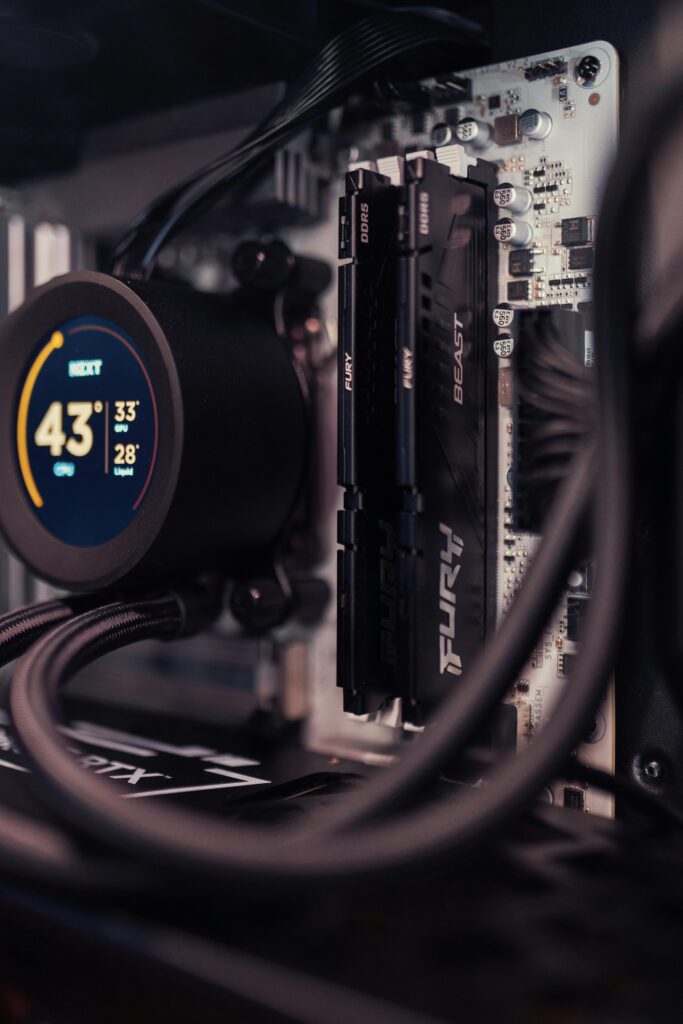
✔ 9. Improve Cooling and Temperature Control
Overheating reduces performance.
👉 Monitor temperature and:
- Clean dust from fans
- Ensure proper airflow
A cooler system runs faster.
✔ 10. Optimize Your System Regularly
Performance monitoring isn’t a one-time task.
👉 Make it a habit to:
- Check system performance
- Clean unnecessary files
- Update software
Regular maintenance keeps your PC running smoothly.
Common Signs Your PC Needs Monitoring
- Slow performance
- Frequent freezing
- High fan noise
- Programs crashing
- Long startup times
If you notice these, it’s time to check your system.
Advanced Monitoring Tips
For more advanced users:
- Use third-party monitoring tools
- Track long-term performance trends
- Analyze system logs
This provides deeper insights.
also go check our other blog about Why your pc is slow
When Should You Take Action?
If you notice:
- Constant high CPU or RAM usage
- Repeated crashes
- System overheating
You should take action immediately.
Final Thoughts
Understanding your PC is the key to improving it.
By tracking performance and analyzing system behavior, you can identify problems early and fix them effectively.
You don’t need to be a tech expert — just knowing what to look for can make a big difference.
Start monitoring your system today and take control of your computer’s performance.
Explore More Guides
Want to improve your system even further?
Check out our guides on speeding up your computer, fixing issues, and optimizing your setup.